

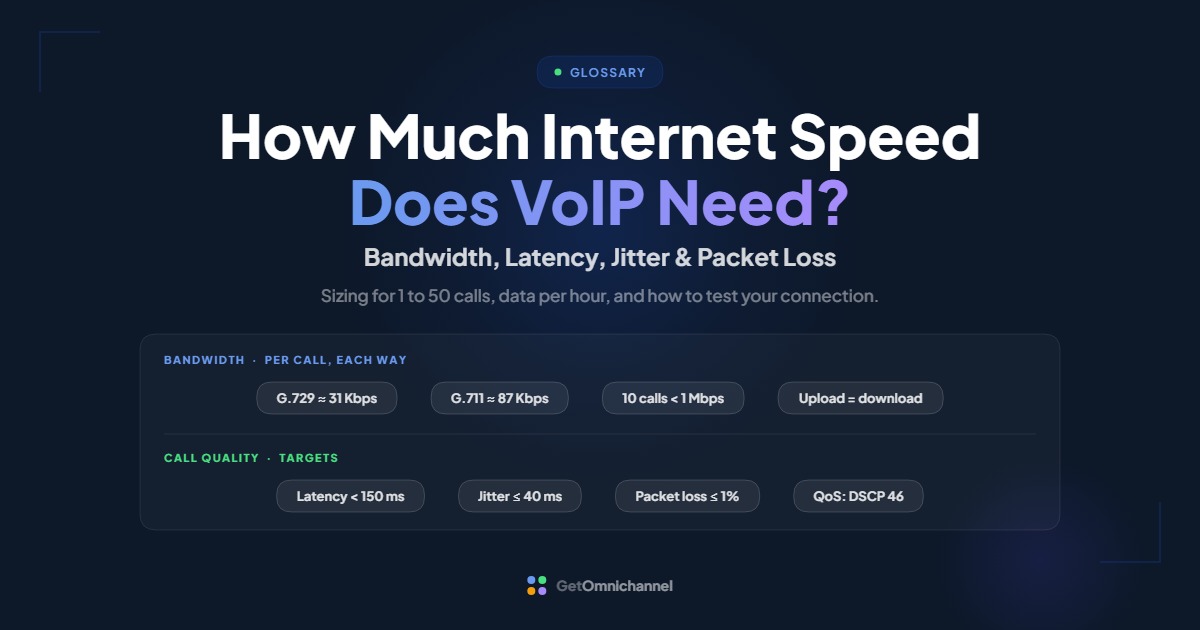
A VoIP call needs roughly 30 to 90 Kbps of bandwidth in each direction, depending on the codec, so even 10 simultaneous calls use under 1 Mbps of upload and download. Speed is rarely the problem. Call quality depends more on latency (keep one-way delay under 150 ms), jitter (under 30 to 40 ms), and packet loss (under 1%).

That’s why a fast connection can still produce choppy calls, and a modest one can sound perfect. This guide gives you the numbers to size your connection, a quick way to test it, and what to change when calls sound bad.
Speed is rarely the problem. Keep latency under 150 ms, jitter under 40 ms, and packet loss under 1%, and turn on QoS.
Compare VoIP providers →VoIP internet requirements at a glance
| Measure | Target | Source |
|---|---|---|
| Bandwidth per call | About 31 Kbps (G.729) to 87 Kbps (G.711) | Cisco |
| Upload vs download | Same amount both ways | Voice flows in both directions at once |
| Latency (one-way) | Under 150 ms | ITU-T G.114, RingCentral |
| Jitter | No more than 40 ms | RingCentral |
| Packet loss | No more than 1% | RingCentral |
| Priority marking (QoS) | DSCP 46, Expedited Forwarding, for voice | Microsoft |
Sources: Cisco voice bandwidth reference, ITU-T G.114, RingCentral QoS guidelines, and Microsoft Teams QoS guidance. Your own provider’s network requirements page is the final word for its service.
How much bandwidth does one VoIP call use?
Less than most people expect, but more than the codec’s headline number. A codec compresses your voice; G.711, the most common default, runs at 64 Kbps. But voice travels in small packets, usually one every 20 milliseconds, or 50 packets per second, and every packet carries addressing headers on top of the voice data. That overhead is why the real figure is higher.
The math, step by step (G.711 on Ethernet)
- Voice data per packet: 64 Kbps × 20 ms = 160 bytes.
- Headers per packet: 40 bytes of IP, UDP, and RTP headers, plus 18 bytes of Ethernet framing = 58 bytes.
- Total per packet: 160 + 58 = 218 bytes, or 1,744 bits.
- Per second: 1,744 bits × 50 packets = 87,200 bits per second, or 87.2 Kbps, in each direction.
The same math for G.729, which sends only 20 bytes of voice per packet, gives (20 + 58) × 8 × 50 = 31.2 Kbps. Both results match Cisco’s published figures.
| Codec | Codec bit rate | Actual bandwidth | Typical use |
|---|---|---|---|
| G.711 | 64 Kbps | 87.2 Kbps | Standard phone quality; the common default |
| G.722 | 64 Kbps | 87.2 Kbps | Wideband ("HD voice") desk phones |
| G.726 | 32 Kbps | 55.2 Kbps | Mid-compression |
| iLBC (20 ms) | 15.2 Kbps | 38.4 Kbps | Copes better with packet loss |
| G.729 | 8 Kbps | 31.2 Kbps | Low-bandwidth links |
Source: Cisco. App-based calling often uses adaptive codecs instead. Microsoft, for example, lists Teams audio calls at a minimum of 10 Kbps, a recommended 58 Kbps, and 76 Kbps for best performance, in each direction (Microsoft Learn).
How much speed for multiple calls?
Size your connection for your peak simultaneous calls, not your headcount. Ten employees rarely all talk at once; a 10-seat sales team at month-end might. Most phone systems report peak concurrent calls in their call analytics. Use that number if you have it.
| Simultaneous calls | G.711 (87.2 Kbps) | G.729 (31.2 Kbps) |
|---|---|---|
| 1 | 87 Kbps | 31 Kbps |
| 5 | 436 Kbps | 156 Kbps |
| 10 | 872 Kbps (0.87 Mbps) | 312 Kbps |
| 25 | 2.18 Mbps | 0.78 Mbps |
| 50 | 4.36 Mbps | 1.56 Mbps |
Peak simultaneous calls × 87.2 Kbps (or your codec's figure) = the voice bandwidth you need in each direction. Then make sure your upload speed covers that number with plenty left over for everything else using the connection at the same time: cloud backups, file sync, and video meetings.
Upload speed matters as much as download
A phone call is two-way: while you listen, you’re also sending your voice the whole time. So a call needs the same bandwidth up as down. Many internet plans advertise a big download number and a much smaller upload number, and upload is usually where VoIP runs out of room first.
The typical failure looks like this: someone starts a large upload, such as a cloud backup, a video file, or a big email attachment. For a few seconds it fills the upload link, voice packets queue behind it, and every call in the office turns choppy at once. Bandwidth wasn’t too low on average; it was full at the wrong moment. That’s what quality-of-service settings fix (see below).
How much data does a VoIP call use?
This matters if you call over a mobile data plan or a hotspot. Using Cisco’s per-call figures (which include Ethernet overhead, so treat them as a slight overestimate for mobile):
| Codec | Per direction | Both directions (total) |
|---|---|---|
| G.711 (87.2 Kbps) | About 39 MB | About 78 MB |
| Teams audio, recommended (58 Kbps) | About 26 MB | About 52 MB |
| G.729 (31.2 Kbps) | About 14 MB | About 28 MB |
The math: 87.2 Kbps × 3,600 seconds = 313,920 kilobits, or about 39 megabytes, in each direction. So an hour of voice calling uses well under 100 MB of mobile data. Video calls use far more (see the next section).
What about video calls?
If your phone system also runs video meetings, video is what really sizes the connection. Microsoft’s published Teams figures, per person, in each direction:
- One-to-one video: 150 Kbps minimum, 1.5 Mbps recommended, 4 Mbps for best performance.
- Video meetings: 150 Kbps up and 200 Kbps down minimum; 2.5 Mbps up and 4 Mbps down recommended.
- Screen sharing in meetings: 250 Kbps minimum, 2.5 Mbps recommended.
Source: Microsoft Learn, Teams bandwidth requirements. Microsoft also notes that when bandwidth runs short, Teams prioritizes audio over video. In short: one recommended-quality video call uses about as much bandwidth as 17 G.711 voice calls (1,500 ÷ 87.2).
Latency, jitter, and packet loss: the numbers that matter most
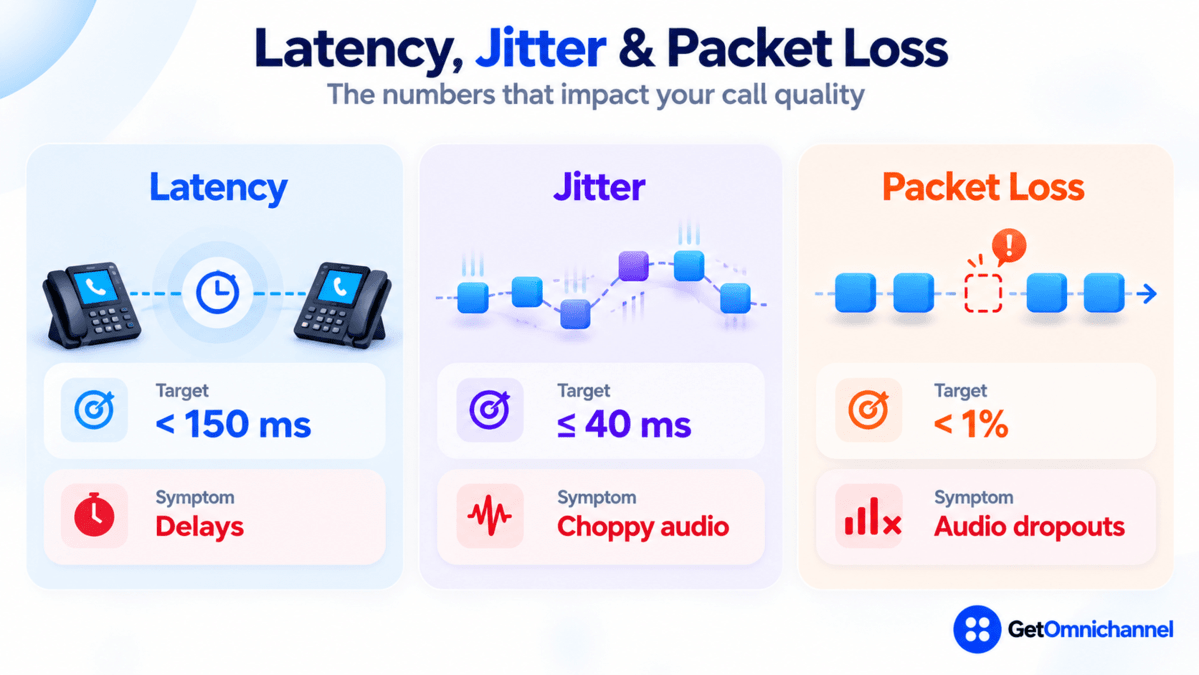
| Measure | What it is | Target | When it's too high |
|---|---|---|---|
| Latency | Time for audio to travel mouth to ear | Under 150 ms one-way | Pauses, people talking over each other |
| Jitter | Variation in when packets arrive | No more than 40 ms | Choppy or robotic voice, missing syllables |
| Packet loss | Packets that never arrive | No more than 1% | Gaps, clipped words, dropouts |
The latency target comes from the ITU’s planning guidance, which treats one-way delay up to about 150 ms as acceptable for most conversations and says 400 ms should not be exceeded (ITU-T G.114). The jitter and packet loss targets are from RingCentral’s network guidelines; other providers publish similar limits, so use your own provider’s numbers if they differ.
Voice uses UDP, which doesn’t resend lost packets, because a late piece of a sentence is useless. That’s why even small amounts of loss or jitter are audible on a call but invisible when you load a web page.
How to test your connection for VoIP
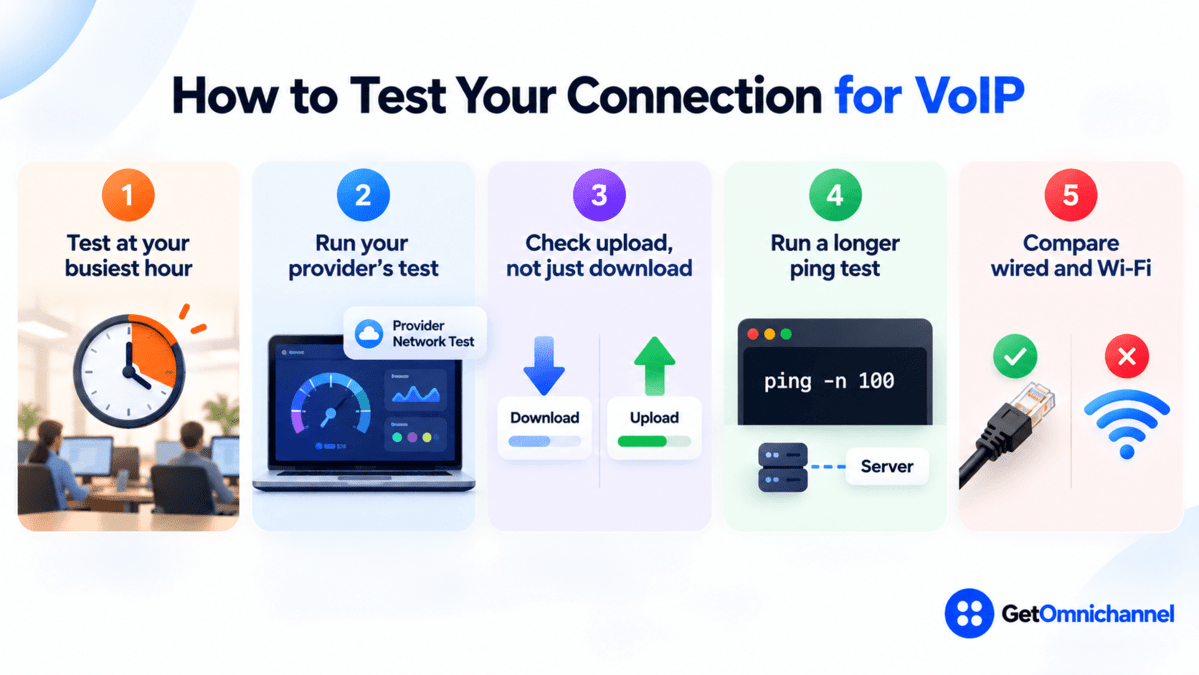
Test at your busiest hour
A connection that's fine at 8 a.m. can struggle at 2 p.m. when everyone is syncing files. Run every test when the office is at its busiest.
Run your provider's network test first
Most VoIP providers offer a test that measures latency, jitter, and packet loss to their own servers, which is the path your calls will actually take.
Check upload, not just download
Use a speed test that reports upload speed and jitter, and compare the upload figure against your sizing calculation above.
Run a longer ping test for loss
On Windows, run ping -n 100 followed by a server address; on Mac, ping -c 100. The summary shows the percentage of packets lost and the round-trip time, which is roughly double the one-way delay. Ping uses a different protocol from voice, so treat it as a guide, not a guarantee.
Compare wired and Wi-Fi
Run the same test on a cable and on Wi-Fi. If results are only bad on Wi-Fi, the problem is the wireless network, not your internet plan.
How to improve VoIP call quality on your network
- Turn on QoS (quality of service). QoS tells your router to send voice packets first. The standard marking for voice is DSCP 46, “Expedited Forwarding.” Microsoft recommends it for Teams audio and says to apply QoS consistently across every device in the path (Microsoft Learn). Microsoft also recommends using QoS first and adding bandwidth only where still needed.
- Keep voice off the VPN. Microsoft recommends a split-tunnel setup so calls bypass the VPN, because VPNs add overhead and delay and often aren’t built for real-time media (Microsoft Learn).
- Use 5 GHz Wi-Fi, or a cable. Microsoft notes the 2.4 GHz band is often crowded by other devices and that 5 GHz is better suited to real-time media, with Wi-Fi Multimedia (WMM) enabled to prioritize it. Desk phones and heavy callers are better on a wired connection.
- Turn off SIP ALG on the router if calls drop, fail to connect, or have one-way audio. This router feature rewrites call setup traffic and often causes more problems than it solves. Check your provider’s guidance first.
- Schedule big uploads. Move cloud backups and large syncs outside business hours, or cap their bandwidth.
- Add a backup connection (a second ISP or a cellular backup) if calls are critical, and set your phone system to forward calls to mobile apps if the office connection fails.
Troubleshooting: match the symptom to the measurement
| Symptom | Measure this | Likely fix |
|---|---|---|
| Choppy or robotic audio | Jitter above 40 ms, or loss above 1% | Wired connection, QoS on, move off 2.4 GHz Wi-Fi |
| All calls get bad at once | Upload usage at that moment | QoS to prioritize voice; schedule or cap large uploads |
| Delay, talking over each other | Latency above 150 ms one-way | Take voice off the VPN; check the provider's data center region |
| Gaps and dropouts | Packet loss in a long ping test | Check cabling and Wi-Fi signal; ask your ISP about line errors |
| One-way audio or calls that drop at a fixed time | Not a speed problem: call setup is being blocked | Turn off SIP ALG; check firewall rules with your provider |
| Bad only for remote staff | Home Wi-Fi and upload speed | Wired or 5 GHz connection; split-tunnel VPN |
For what happens inside a call when each of these goes wrong, see the troubleshooting section of our guide to what VoIP is and how it works.
How this guide was made
Researched and written by Kinjal Trivedi, SaaS & Technology Writer at GetOmnichannel. Per-call bandwidth comes from Cisco's published voice bandwidth reference; the sizing table, data-per-hour figures, and overhead math are our own calculations from those figures. Latency guidance is from ITU-T G.114, jitter and packet loss limits from RingCentral's network guidelines, and QoS, VPN, Wi-Fi, and Teams bandwidth figures from Microsoft Learn (all checked October 2026).
Each VoIP call needs under 100 Kbps each way, so raw speed is rarely the issue. Size for your peak simultaneous calls, check your upload speed, and keep latency under 150 ms, jitter under 40 ms, and packet loss under 1%. If calls still sound bad, turn on QoS before you pay for a faster plan.
Frequently asked questions
Conclusion: size for peak calls, then fix quality
VoIP is light on bandwidth: under 100 Kbps per call each way, and well under 100 MB per hour of calling. Most offices already have enough raw speed. What they often lack is upload headroom at busy moments, a router that puts voice first, and a stable path with low jitter and loss. Size for your peak simultaneous calls, test at your busiest hour, and turn on QoS before you upgrade your plan.
Next step: Once your network checks out, compare plans in our guide to the best VoIP providers.
 Your information is encrypted and kept secure.